Appearance





❗ For custom buttons this plugin uses
google.accounts.oauth2.initCodeClientandgoogle.accounts.oauth2.initTokenClientunder the hood, which gives an OAuth2 authorization code and Access Token respectively in the callback response. The Google rendered login button and One Tap prompt give a CredentialResponse with a JWT credential field. If you use a combination of these, validating the callback on the server side can be tricky — see here for more info.
Sometimes you may not need the default button rendered by Google. You can create your own button and make it behave like a login with Google button.
This can be done in three ways:
Create your own button component and keep it inside the GoogleLogin component. The default slot content of the GoogleLogin component is treated as a custom login button and will act as a login with Google button:
<script setup>
const callback = (response) => {
  console.log("Handle the response", response)
}
</script>

<template>
  <GoogleLogin :callback="callback">
    <button>Login Using Google</button>
  </GoogleLogin>
</template>
💡 By default this will give an Auth code in the response. You can use the prop
popup-type="TOKEN"to get an Access Token instead.
You can use googleAuthCodeLogin function to dynamically trigger the opening of the login popup. The response will contain an OAuth2 authorization code:
<script setup>
import { googleAuthCodeLogin } from "vue3-google-login"
const login = () => {
  googleAuthCodeLogin().then((response) => {
    console.log("Handle the response", response)
  })
}
</script>

<template>
  <button @click="login">Login Using Google</button>
</template>Just like googleAuthCodeLogin function, you can use googleTokenLogin to trigger the login popup that gives an Access Token instead of an Auth code:
<script setup>
import { googleTokenLogin } from "vue3-google-login"
const login = () => {
  googleTokenLogin().then((response) => {
    console.log("Handle the response", response)
  })
}
</script>

<template>
  <button @click="login">Login Using Google</button>
</template>
Here is an image showing how a custom button opens the Google OAuth2 login popup:
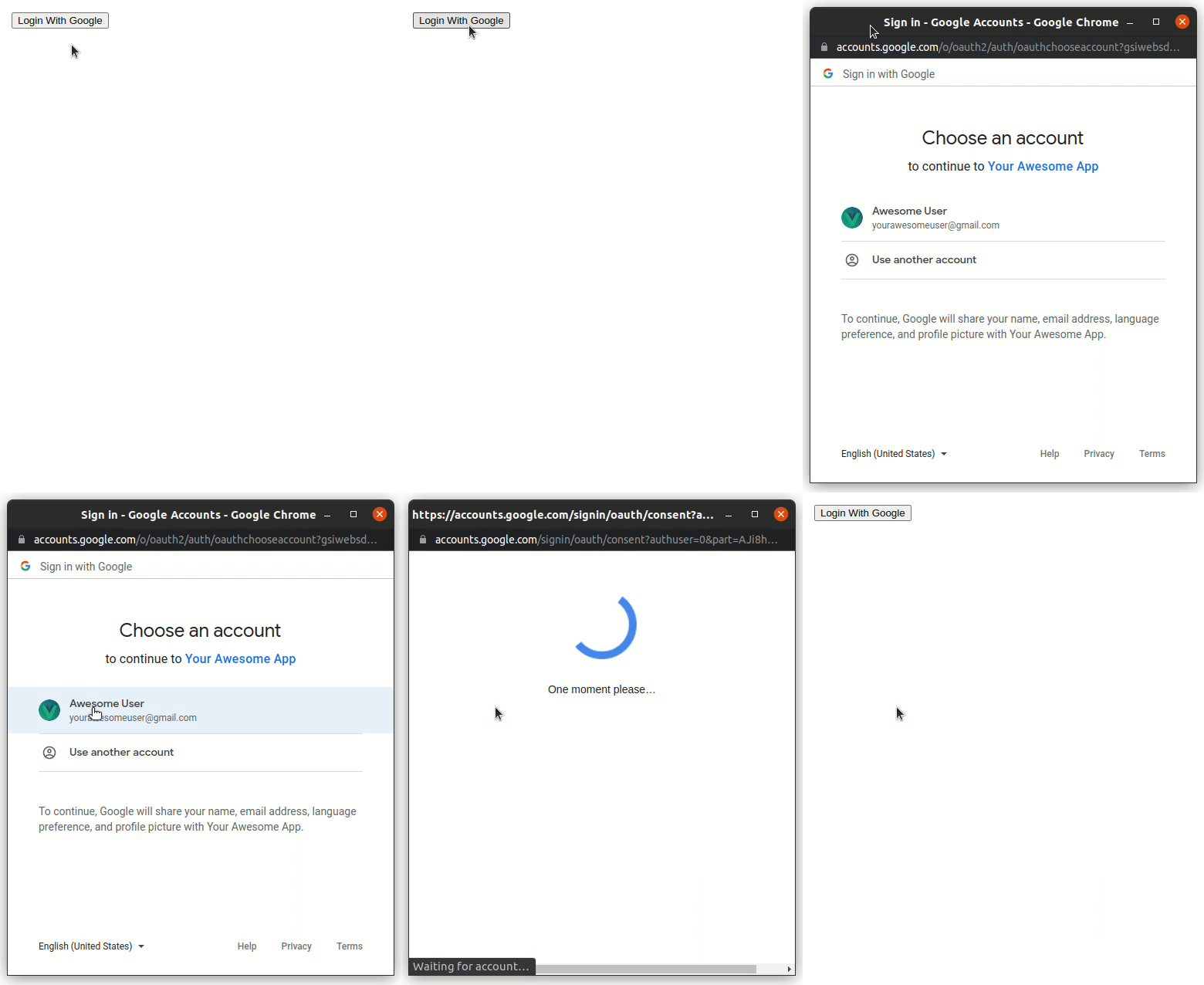
When building a fully custom button it's a good practice to disable it until the Google SDK is fully loaded. You can use the useGoogleSdk composable which exposes a reactive isLoaded boolean for this purpose:
<script setup>
import { useGoogleSdk, googleAuthCodeLogin } from "vue3-google-login"

const { isLoaded } = useGoogleSdk()

const login = async () => {
  const response = await googleAuthCodeLogin()
  console.log("Handle the response", response)
}
</script>

<template>
  <button :disabled="!isLoaded" @click="login">
    Sign in with Google
  </button>
</template>
💡
isLoadedis a Vue computed ref that becomestrueonce the Google Identity Services script is fully loaded and ready. Until then, the button stays disabled, preventing users from clicking before the SDK initializes.